Step 1 – If you’ve enrolled for LeadVantage, let’s first get you logged in
The easiest and best way to access your LeadVantage account is to use your ‘Quick Link’ on Agency Gateway. (And using Chrome as your browser).
You can either use the LeadVantage quick link OR the AllstateLeadMarketplace.com quick link. Both will deliver you into your LeadVantage account.
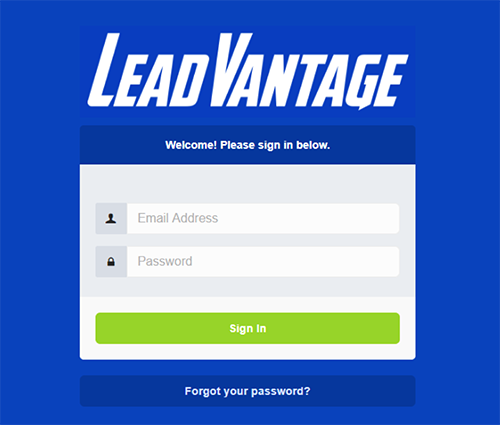
If you are unable to use or access Agency Gateway, you can also log in from a webpage with your credentials. To do so start here:
URL: www.allstateleadvantage.com
Username: Your Allstate email address (e.g. Xxxxx@allstate.com)
Password: (Click the ‘Forgot your password?’ button and a temporary password will be emailed to you)
Step 2 – CHANGE YOUR PASSWORD and Verify your Profile details
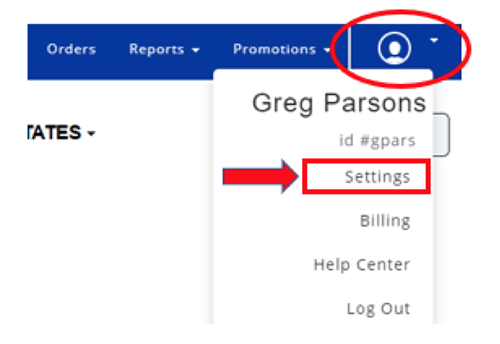
From the Profile dropdown in the upper right corner, click on the ‘Settings’ option.
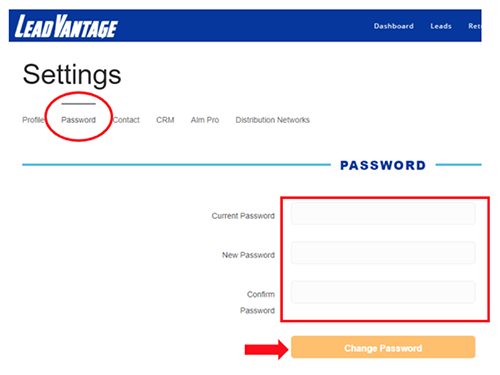
Click on the ‘Password’ option and update your password.
Next, click on the ‘Profile’ option and verify your contact details are accurate. Update as needed.
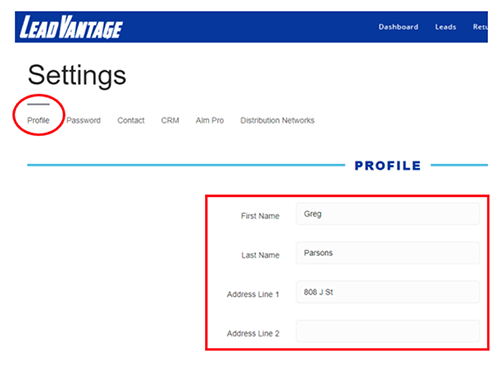
Lastly, click on ‘Distribution Networks’ to connect LeadVantage to your Lead Manager and other
systems.
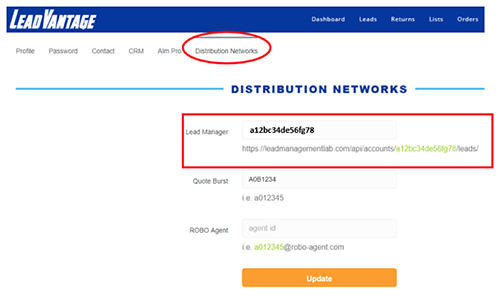
Here you can add your credentials (e.g. posting URL for Lead Manager) to simplify sending your leads to
these platforms after list creation.
Step 3 – Let’s make your first list!
Navigate to the Lists tab and click on ‘New list Setup.’

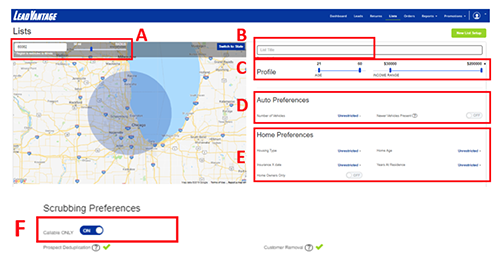
A list order page will open. On this page, you will specify
A – Your location and surrounding area of business
B – The ‘Name’ for your list (such as ‘multi-auto homeowners within 30 miles’)
C – Designate your preferred consumer profile
D – Select your Auto preferences
E – Select your Home preferences
F – Indicate ‘Callable Only’ records if desired
G – Adjust your delivery preferences
H – Create a scheduled delivery, if desired
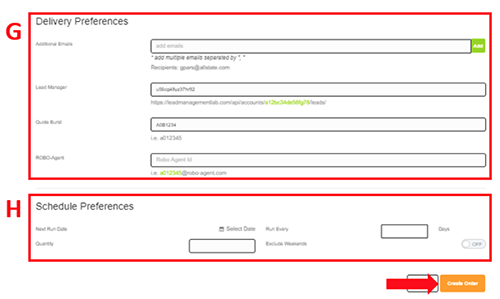
Click on ‘Create Order’ when you are done.
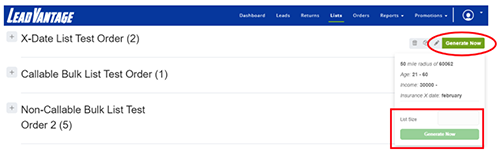
If this is a scheduled order, it will run based on your settings. If you need leads now, click the ‘Generate
Now’ button to the right of your new list order name and specify the number of records you require.